Image Data Pop-Up Menu
A pop-up menu is available in the Data Settings and Properties to provide access tools for processing image data and to export, import, and copy objects.
| Description | |
|---|---|
|
Crop |
Opens the Dataset Cropper panel. In this panel you can crop datasets to the bounding box defined with the Clip box tool (see Cropping Datasets). |
|
Sample |
Opens the Dataset Sampler panel. In this panel you can modify the image spacing of slices within a volumetric dataset by upsampling or downsampling (see Sampling Datasets). |
|
Convert |
Opens the Convert Dataset panel. In this panel you can restructure data according to different analysis needs (see Converting Image Data). |
|
Invert |
Opens the Invert Dataset panel. In this panel you can invert data within a dataset (see Inverting Datasets). |
|
Dataset Properties |
Opens the Dataset Properties panel. The basic and advanced properties related to a dataset can be viewed and modified here (see Dataset Properties). |
|
Generate Contour Mesh |
Generates a contour mesh from data values above a selected threshold (see Generating Contour Meshes from Image Data). |
|
Dataset Registration |
Allows you to register multiple datasets to a baseline by modifying the position and rotation of the selected dataset (see Registering Datasets). |
|
Dataset Slice Registration |
Lets you to align the slices within a dataset to build a consistent image stack (see Aligning Image Stacks). |
|
Segment with Classifier |
Lets you automatically segment image data with any of the classifiers that you created or downloaded for trainable segmentation (see Segmenting Image Data with Trained Classifiers). |
|
Apply Registration to Other Dataset(s) |
Lets you apply the transformations used to register datasets to another dataset. |
|
Export Images |
Opens the Save As dialog. You can export datasets to a number of different file formats (see Exporting Images). |
|
Export as ORSObject |
Saves the dataset in the ORS Object File (*.ORSObject extension). See Exporting Objects. |
|
Execute Macro |
Provides a shortcut for selecting macros that can be executed for the selected image data. |
|
Derive New from Current View |
Lets you create a new 3D volume that is aligned to the selected viewing angle (see Deriving New from Current View). |
|
Align with Current View |
Automatically rotates the selected volume so that the selected axis is aligned to the Z-axis of the world coordinate system.
|
|
Align Centroid With |
Lets you automatically align the centroid of the selected dataset with the centroid of another object. Applicable objects include volumetric image data, regions of interest, multi-ROIs, and meshes. Reference objects can be selected in Choose the object to align with dialog. |
|
Apply Transformation From |
To help maintain consistency when you work with multiple objects, you can apply the transformations, such as translations and rotations, that were applied to a reference object to the selected image data. You should note that only objects that were translated and/or rotated, will be available in the Choose an object dialog as the reference. |
|
New Greylevel Multi-ROI |
Creates a multi-ROI in which each value in the dataset is assigned a label. If there are 2,000 values in the dataset, then there will be 2,000 objects in the created multi-ROI. Usually done after post-processing, such as creating a distance map, to create a sparse representation of the gray tones in a dataset. |
|
Dijkstra Shortest Path Map |
Creates a distance for a selected region of interest using Dijkstra's algorithm for finding the shortest paths between nodes. Refer to en.wikipedia.org/wiki/Dijkstra%27s_algorithm for more information about Dijkstra's algorithm. |
|
Fast Marching Speed Map |
Creates a distance map for a selected region of interest using the numerical method created by James Sethian for solving boundary value problems of the Eikonal equation. Refer to en.wikipedia.org/wiki/Fast_marching_method for more information about the fast marching method. |
|
New Dataset from Marked Slices |
Lets you extract a new dataset from marked image slices (see Extracting New Datasets from Marked Slices). |
|
Normalize Histogram |
Lets you normalize the histogram of a selected dataset to the histogram of another dataset. |
|
Copy |
Copies the selected dataset and adds it to the list at the top of the Data Properties and Settings panel. |
|
Remove |
Removes the selected dataset from the Data Properties and Settings panel. All views related to the dataset will also be removed from the workspace. |
|
Resample Shape |
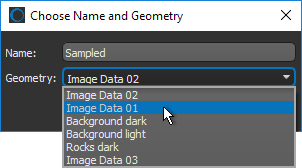
Copies the intersected values of the selected object(s) into the geometry (or shape) of another object to create a new dataset. Might be necessary if you need to extract statistics from an ROI or multi-ROI, such as the minimum, maximum, or mean values of corresponding image data (see Statistical Properties), or intend to compute other measures that require consistent shapes.
|
|
Inpaint |
Can be used to remove small defects within an image or to replace lost or corrupted parts of image data (see Inpainting). |


 LEARNING LINKS

